How to Download Digital Elevation Models (DEMs): 6 Best Sites
Master how to download Digital Elevation Models (DEMs) with our step-by-step guide to USGS and 6 top global resources.
HHadi
· 70 min read· 94 views
Master how to download Digital Elevation Models (DEMs) with our step-by-step guide to USGS and 6 top global resources.
Quick answers to common questions.
The emergence of digital computers in the mid-20th century transformed various fields, particularly engineering. With the capability to store and manipulate digital data, engineers started exploring the potential of raster images for different applications. The first satellite images were initially captured in analog format, but as technology advanced over the years, they were digitized and saved as raster files.
In today’s construction industry, the demand for accuracy, efficiency, and cost-effectiveness is higher than ever. As projects grow more complex, the tools engineers use must evolve. In the past, engineers needed to have mapping for the initial design; however, it needed to be much more time-consuming and costly, but, over the past years, with advancements in technology and appearance data raster, including satellite images, aerial photographs, elevation information of the earth's surface, and various types of cartographic photos. In this article, we intend to introduce some high-quality websites for data downloading. These websites provide essential data such as vector files, DEMs (Digital Elevation Models), satellite images, and data for industrial applications in fields like meteorology, agriculture, and transportation.
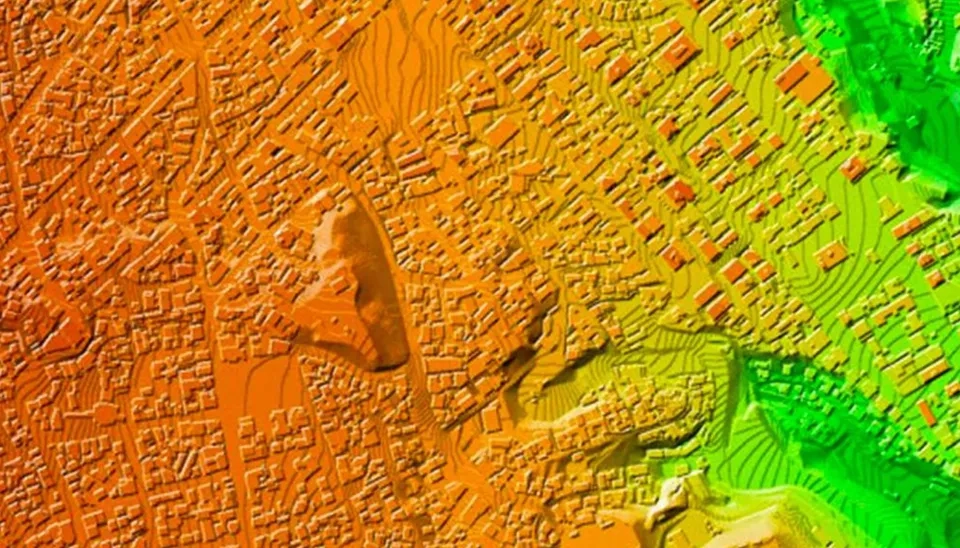
Geographic information systems (GIS) use digital elevation models (DEM) as essential tools for analyzing and displaying the earth's topography. These models provide information about different elevations, topography slopes, types of soil, density of vegetation, and rainfall, which help designers and engineers with initial design and land use decisions. Other areas of application for geographic information systems include:
Geography Mapping and surveying Mining engineering, issues of mine exploration, preparation of maps and models of mineral reserves and their calculations, etc. Natural resources Remote sensing Meteorology Environment Telecommunications Urban planning Precision agriculture geology. Also, digital elevation models (DEMs) are often used in geographic information systems and are the basis for preparing digital terrain maps.
Digital terrain maps are used as basic tools in fields such as geography, urban planning, and the environment. The basics for preparing these maps include using advanced technologies such as geographic information systems (GIS), remote sensing, and 3D modeling. The collection of data usually begins with satellite imagery and aerial photography, which export the elevation data after these processes. Digital models integrate this information, enabling the visualization of landforms and topography. Maps can incorporate additional layers like vegetation, hydrology, and land to provide a comprehensive perspective. Finally, these maps help designers and engineers to make decisions and manage resources. Consequently, there are several websites where you can download raster files for free, including USGS Earth Explorer, Natural Earth Data, GADM, NOAA, OpenStreetMap, and Open Topography. In the following article, we will introduce each of them in order and explain how to specifically download Digital Elevation Model (DEM) files from the USGS Earth Explorer website.
USGS Earth Explorer is the data services portal website of the United States Geological Survey (USGS). It provides the latest and most comprehensive global satellite images (including Landsat and Modis satellite images, etc.), elevation model data (including ASTER GDEM and SRTM), and other geological resources research data. Users must register to download a raster file on this website. Also, there are different satellites for downloading types of raster files. In this article, we will specifically learn how to download a raster file for the initial design.
Natural Earth is known as a resource that is valid and useful in the geography data field. It is supported by the North American Cartographic Information Association. The website offers users the collection data for the general world map, which is easy to download. This collection has different scales, such as 1:10, 1:50, and 1:110. ArcGIS can use this data for cartography, tutorial map creation, and research purposes.
GADM is a database that is valid and has the highest accuracy; it includes global administrative divisions at various levels for all countries worldwide, also with different areas of them. This website is popular and validated for researchers and students who like geography. The data are available for users in two ways: one is choosing a country with the special data (download GADM data_country), and the other is selecting a country with general data (download GADM data).
NOAA is the website of the U.S. National Oceanic and Atmospheric Administration that is known as one of the most important and valid websites for different data for researchers and students. This website provides an extensive The collection of radar, image, and climate data aids researchers interested in geographic sciences and the environment. This website provides the images with the highest quality and scheduling accuracy.
OpenStreetMap is an online mapping collaboration project that allows users to record and share the global vector data with different levels of accuracy. Also, it has local vector data for users; these features allow researchers, developers, and students who are interested in the accuracy and updating of the data to access it easily. These maps help enhance awareness of the environment and its needs.
Open Topography provides high-resolution terrain data and operating tools. This website is a source for high-quality geological data, especially point cloud data. This website provides a Digital Elevation Model (DEM), a Digital Surface Model (DSM), and similar items. Also, this website provides an application tool and has a simple user interface for researching, showing, and downloading the data. In addition, it focuses mainly on the US, Canada, Australia, and Brazil. Anyhow, it is an ideal resource for exercising and learning about working with point clouds. All of these sites are proper for downloading DEM files, but the site Earth Explorer is available easily for designers and engineers. In addition, it is easier to download DEM files from this site than from other sites. I will discover how to download this website by reading this essay.
The steps for downloading the DEM file are: first, you need to register and enter the site Earth Explorer to access the DEM file for downloading it. Then, you must locate the desired area on the map. Choose the satellite source and DEM data type next. Finally, you can download the DEM file and save it on your computer. In the following essay, learn the steps to download the DEM file from the site Earth Explorer.
There are two types of free DEM for downloading: 30 meters, ASTER and SRTM, and 90 meters, SRTM, which ASTER produced using optical data, and elevation models obtained from SRTM were prepared using radar sensors and radar interferometry.
The easiest way to download the DEM file is using the sites USGS or Earth Explorer.
Initially, it needs to register on the site Earth Explorer for downloading DEM files.
The way to register this site is as follows below:
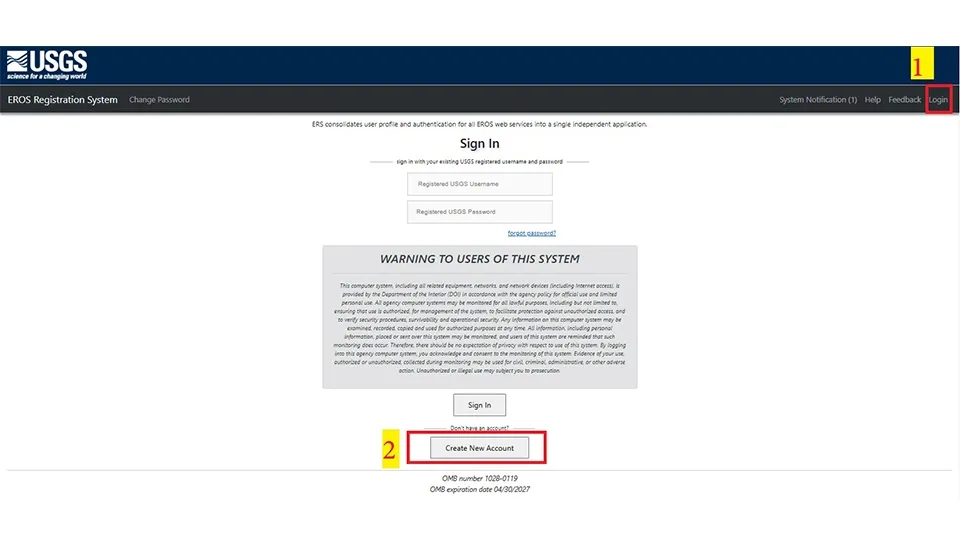
First, click on the login, and then click on the Create New Account that opens a new window (Fig. 2).
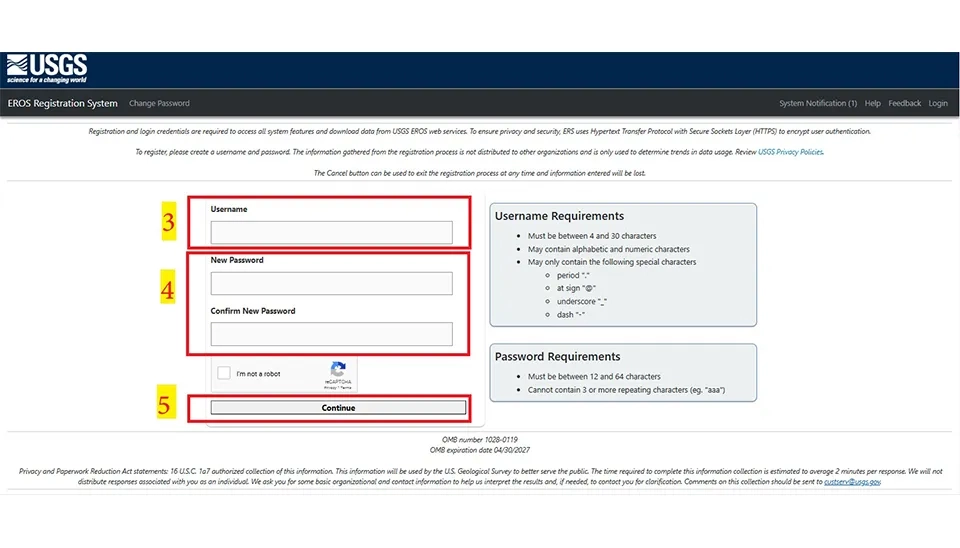
Next, carefully select the required username and password while importing a new username and password. After that, click on Continue to go to the next level (Fig. 3).
In the next level, it is necessary to select the cases below.
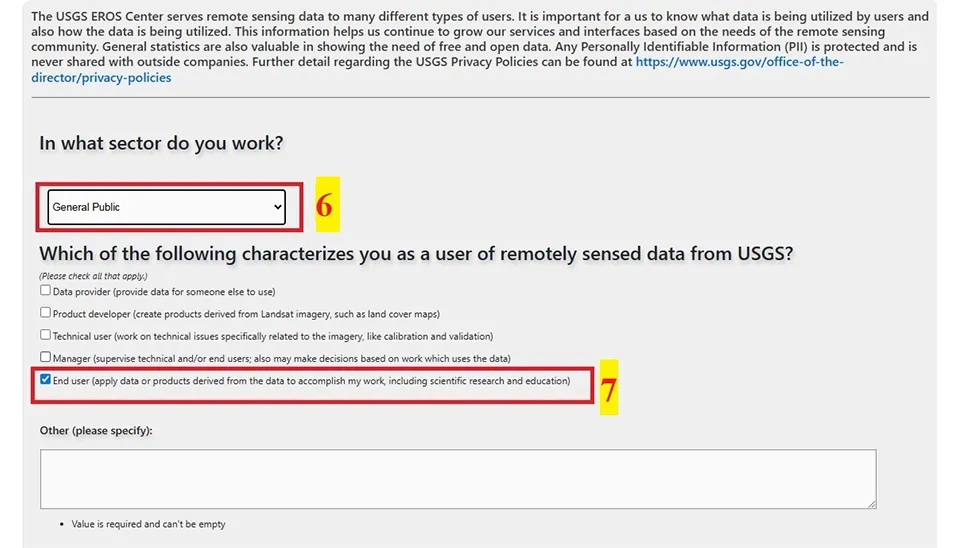
First, you need to select "In what sector do you work?" to use this site. You can choose a job from the dropdown menu related to public service.
The second is to select one case in "Which of the following characterizes you as a user of remotely sensed data from USGS." This case has four options. It is best to select the end case for designers.
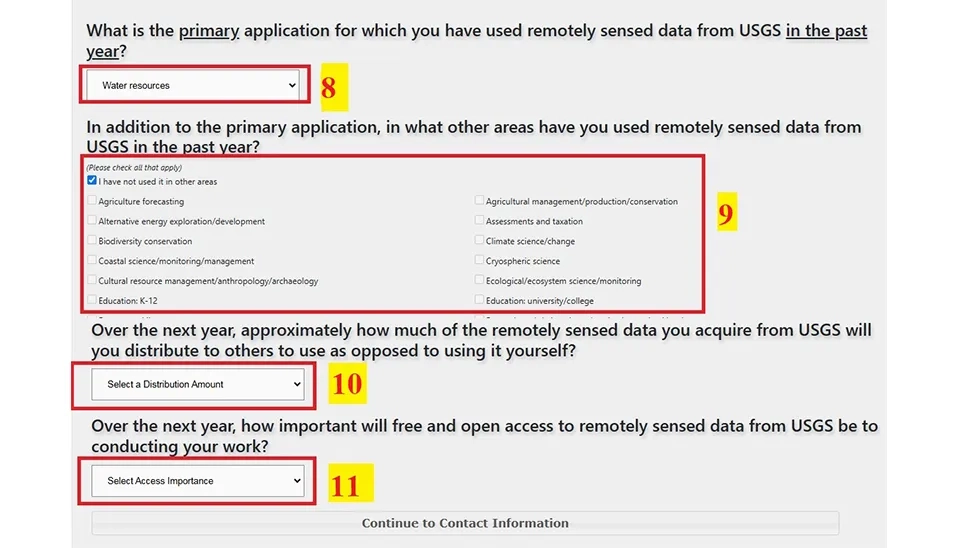
Next, you need the yes or no in front of the case, "Does your work use remotely sensed data from the USGS?"
Then, in addition to the primary needs, you need to select what other areas you have used remotely sensed data from USGS in the past year. If you have not used this site in the past, you must select the box "I have not used it in other areas." In continuation, it needs to select the Continue to Contact Information to the next level.
Finally, it needs to select all of the dates and the crucial ones in the two end boxes.
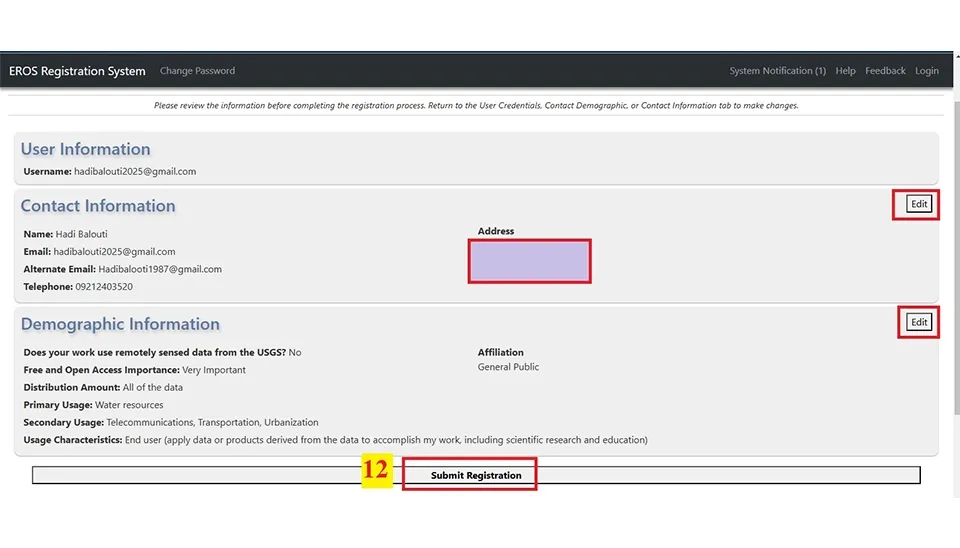
For the next level, after the cases above, you need to complete the form with your information about yourself and select Save Contact Information. Next, select 'Save Contact Information' to proceed to the next level. There, review your information and choose 'Submit Registration' once you've approved all details.
Note: You can change your information if you make a mistake entering it by using the Edit button.
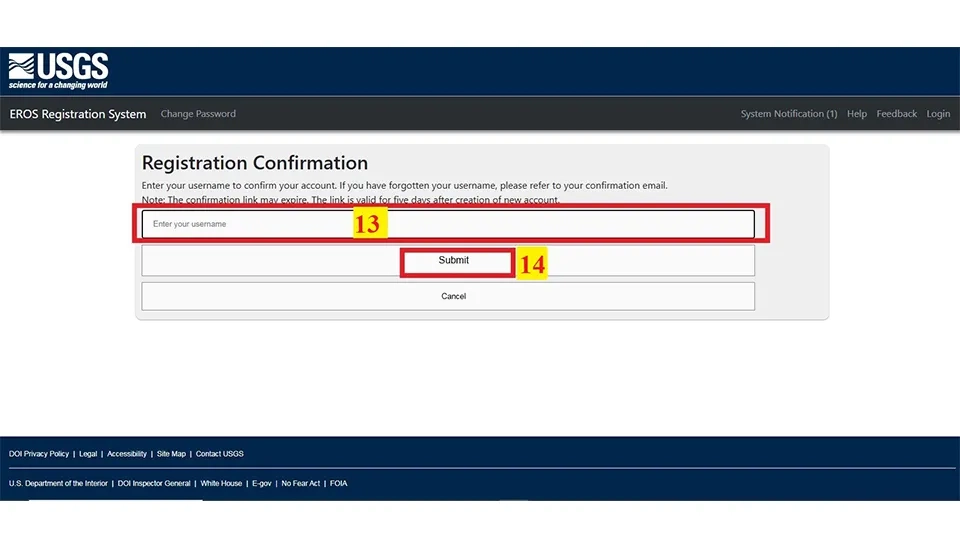
Afterwards, the site will send a link to approve the registration to your email address; you will need to click on this link. Eventually, you must enter the email that you used for registering and click on Submit.
As a result, you can use your user and password to enter Earth Explorer to download the DEM file.
There are some steps for downloading DEM files from the USGS Earth Explorer.
Initially. It must connect to the site with your username and password.
The site has 4 steps for downloading DEM files, such as search criteria, data sets, additional criteria, and results. The first step involves choosing the desired area, and there are two ways to accomplish this.
The first method can be selected for the desired area as follows:
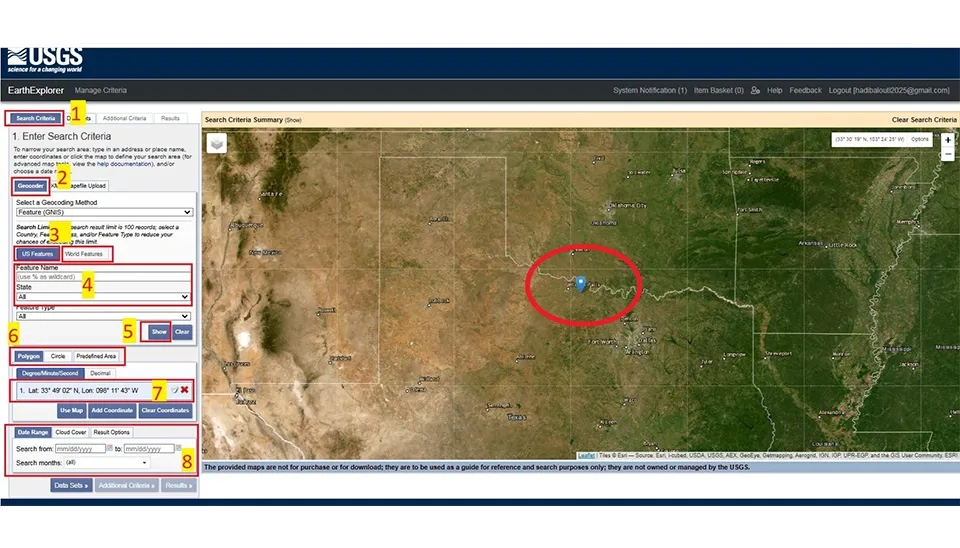
First, click on the search criteria (step 1), then select the geocoder (step 2). Next Level has two cases: USA features for the USA region and world features for regions other than the USA (step 3). After that, you need to write the name of the region in the Features Name's box. So, write the name of the region and select its state (step 4). To see the area on the map, click "Show the region" in the box below (step 7). You can choose the region as an area by using polygons, circles, and predefined areas (step 6).
Also, step 8 includes 3 features: it includes the date range, the cloud cover, and results. The date is used for setting a special date. You can also set it to the date range of the previous year. We use the cloud cover to ensure the accuracy of the DEM file. It is better to opt for the cloud cover with the lowest amount if it requires the DEM file with high quality. We also use the Results Option to display results on each page. However, you can download the DEM file without completing the eighth step.
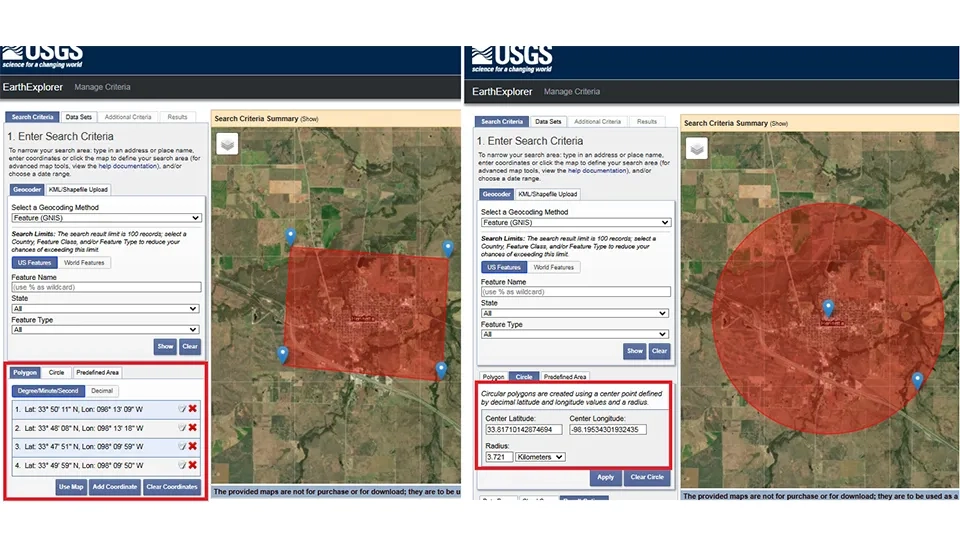
To use the polygon, you need to select 4 or more points of the region, and the circle is used by selecting a point in the center of the region and selecting a point out of the area or importing the radius of the circle.
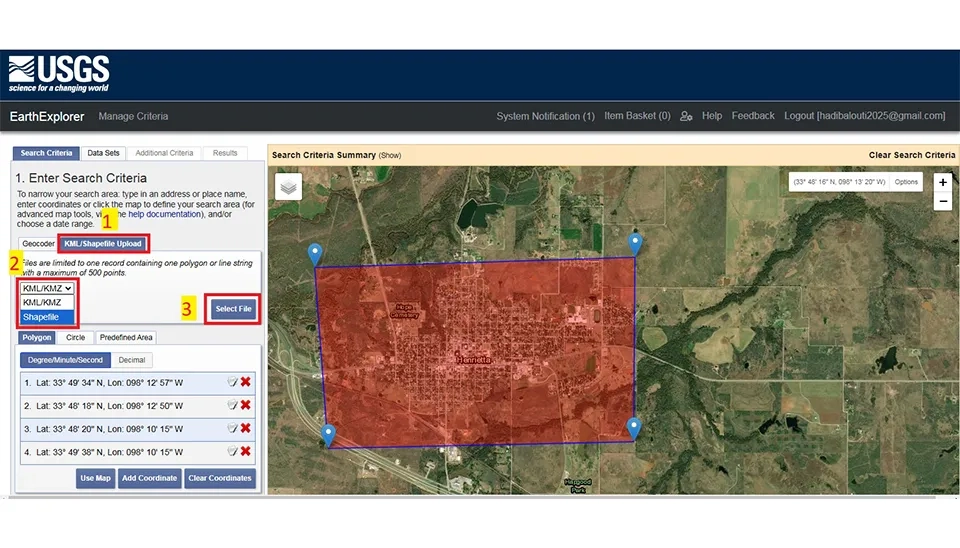
Also, there is a method for selecting the area desired. This method is to use a point or polygon saved from the KML/KMZ format by Google Earth or Shapefile by ArcGIS.
This method, initially, is to click on the KML/Shapefile; then, click on the sliding box to choose the KML/KMZ or Shapefile; next, click on the Select File to import the KML/KMZ or Shapefile that was saved on your computer before. Finally, the area desired is shown on the map (fig. 10).
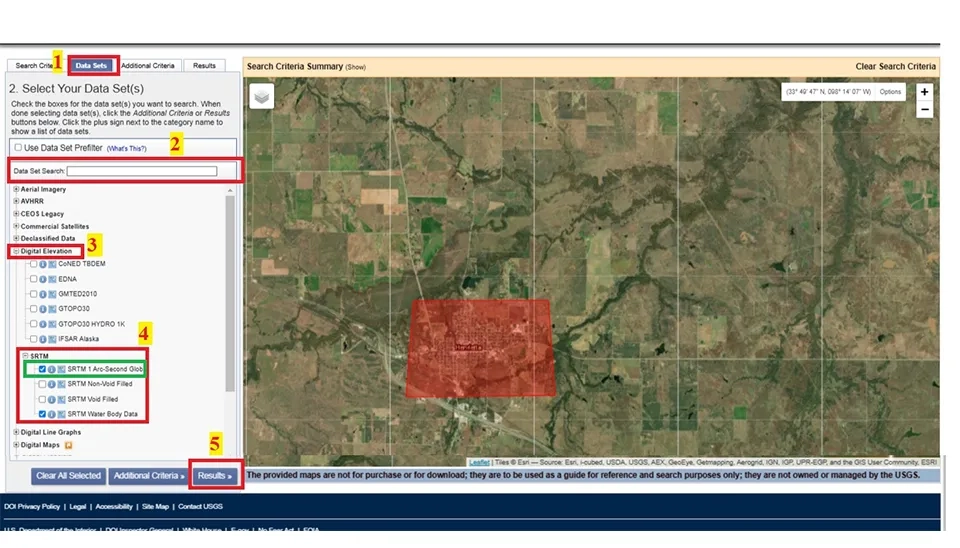
The next level is to select the right satellite to download the DEM file from the Date Sets part of the Earth Explorer. Initially, click on the Date Sets, which opens a window including the suitable satellite. The next step may be to look for the satellite or select it from the satellite list. Finally, click the Results part to move to the last step for downloading the desired DEM file (fig. 11).
Note: The SRTM 1 ARC-Second Global is the main satellite for downloading DEM files. So, for example, once you understand how to download DEM files from the SRTM 1 ARC-Second Global satellite, the next step is to learn how to download from other satellites.
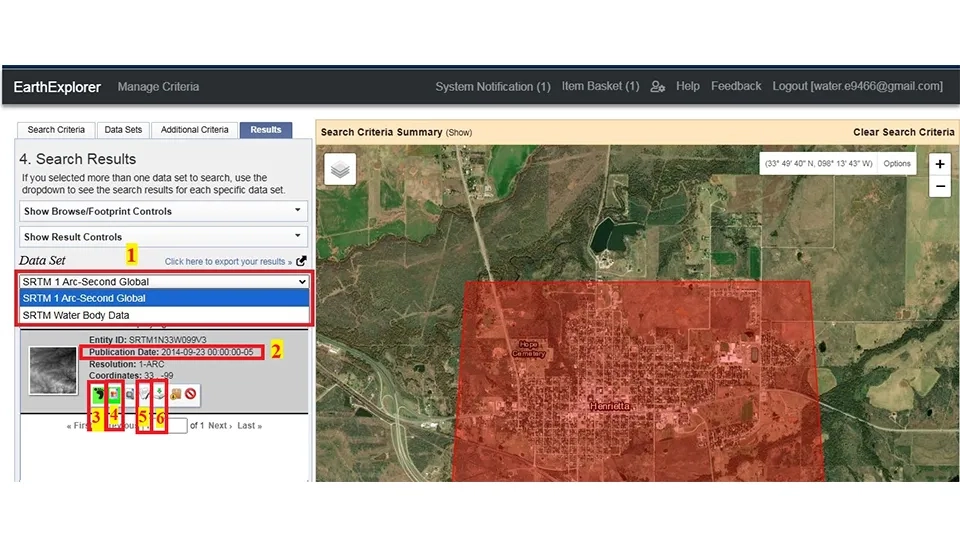
The last step is to see all the information about the DEM file before downloading it from Earth Explorer. The publication date is one of the most important pieces of information to check before downloading. This level includes seven steps. The first step displays the results of each satellite. The second step includes writing the publication. In the third step, click on the footprint to display the desired area file on the map. Click the Show Brows Overly button in step four to bring up the DEM file for the selected region on the map. Click on the fifth step to display additional information about the DEM file. In the end, the DEM file is downloaded by clicking on the Download Option in the sixth step (Fig. 12).
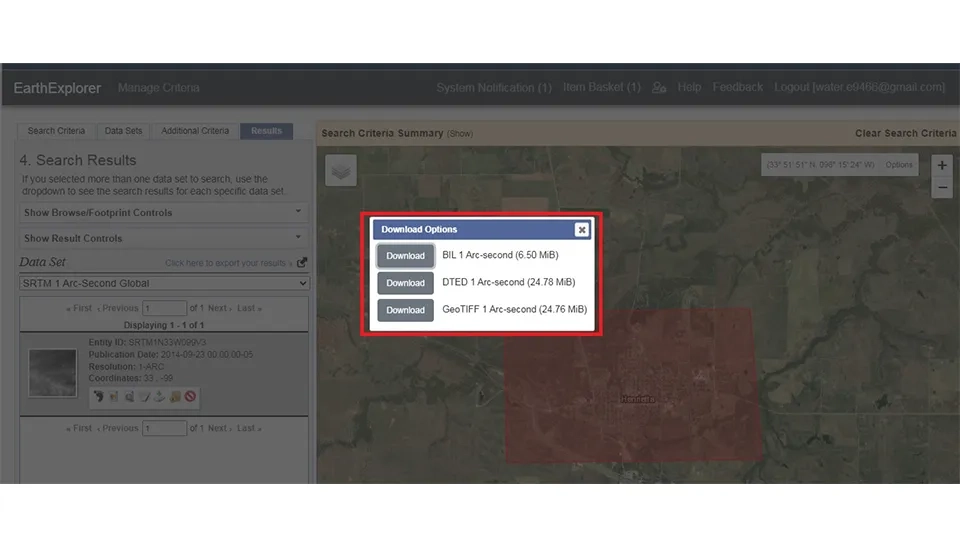
Finally, clicking on the Download Option opens a window displaying the types of DEM files available for download. To start downloading the DEM file, you need to save it on your computer (fig. 13).
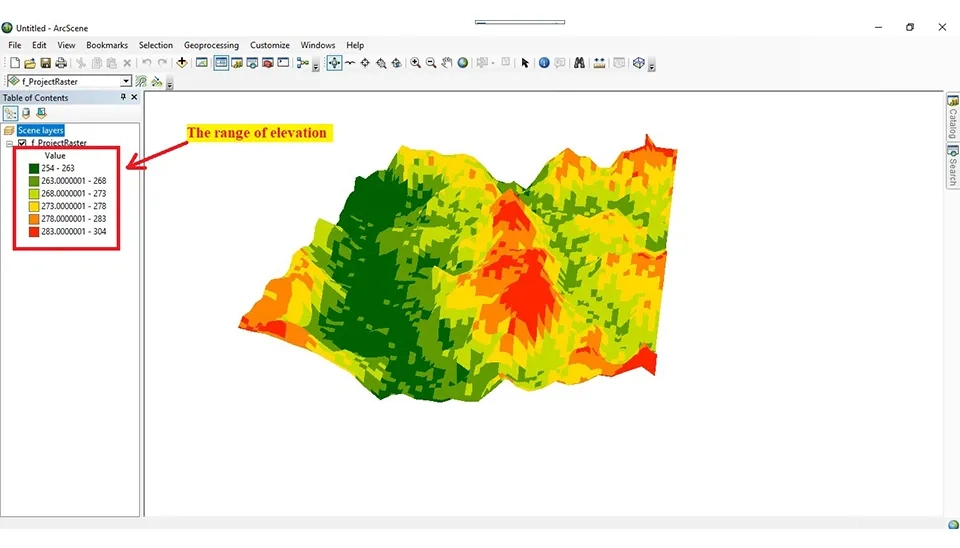
As a result, it will import to show in 3D the DEM file into ArcGIS and ArcScene, which is GIS software that allows users to analyze and manage the maps in 3D. Also, it will show the maximum and minimum elevation of the DEM (Figs. 14 and 15).
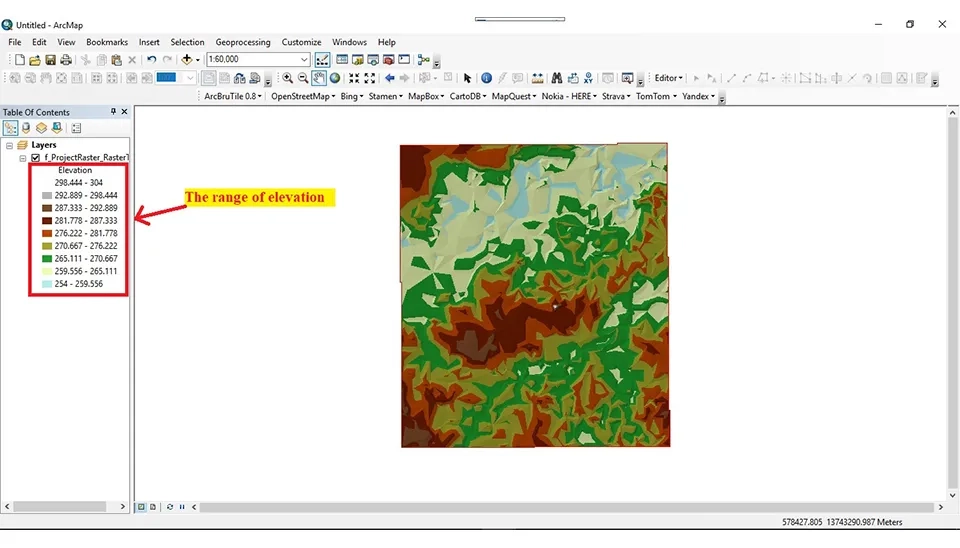
Fig. 15 illustrates the 3D representation of the Digital Elevation Model (DEM) in ArcScene. The elevation variations are shown using a color ranging from low to high altitudes. This 3D visualization helps better understand the topography and elevation of the area.
It is clear that the emergence of the digital computer occurred in the middle of the 20th century. It has made a considerable transformation in various fields, particularly in the engine field. The engineers paid to review the potential of DEM files for different uses with capabilities to save and process them. Initially, the satellite recorded its images using analog methods. Instead, with the advancement of technology, these images have been recorded digitally by the DEM file. In the past, designers and engineers needed surveys for initial designing that took time, and instead, nowadays, with advancing technology and the DEM files such as satellite images, aerial photographs, and information about the elevation of the earth’s surface, this process has helped designers and engineers with designing.
This article introduced the websites' quality for downloading the DEM files that are used in different fields such as agriculture, meteorology, urban planning, environmental management, traffic, and transportation. Additionally, USGS Earth Explorer is a comprehensive website for DEM file downloads, widely utilized across various fields.
Therefore, they must register and enter this website to download the DEM file. Then, choosing the desired area on the map, opt for the satellite and type of DEM file. Finally, you can download the DEM files and save them on your computer. So, designers and engineers will use advancements in technology and the highest quality information available to enhance the accuracy and efficacy of their projects.
Keep reading












Comments
No comments yet
Be the first to comment
Share your thoughts and start the conversation.